Products
Create and manage your product catalog.
Overview
Products are the core of your store. This page covers how to create and manage your catalog, work with variants, upload images, track inventory, and import or export your product data.
Feature flag: Products is on by default and owner-toggleable. Disabling it hides Products and all dependent sections (Orders, Cart, Inventory, Collections) from your admin nav.
Product List
Go to Products in the admin sidebar to see your full catalog.

From here you can:
- Search products by name
- Click any product to edit it
- Click New Product to create one
Creating a Product
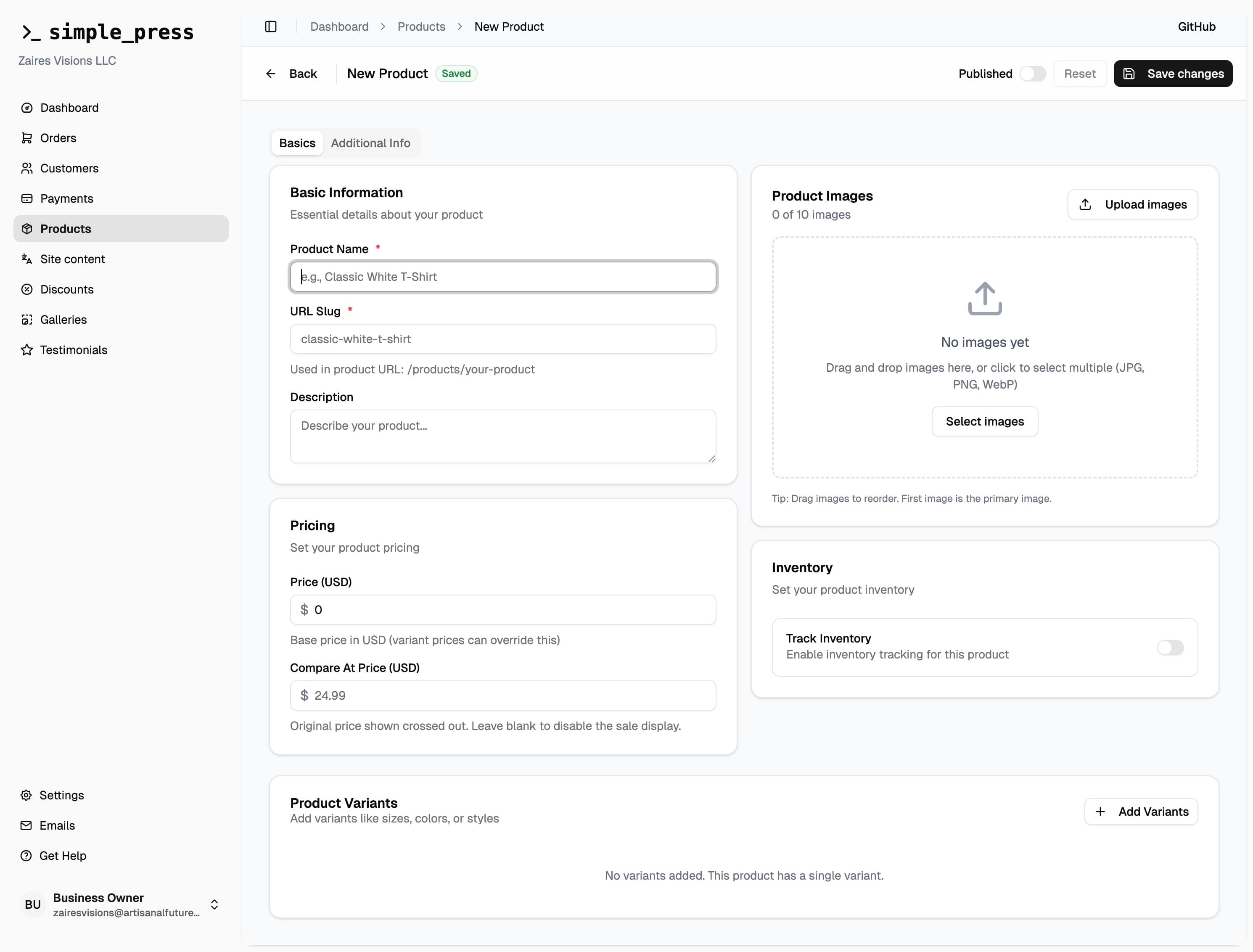
Click New Product in the top right. The product form has two tabs: Basics and Additional Info.
Basics Tab
Basic Information
| Field | Notes |
|---|---|
| Product Name | Required. What customers see on the storefront. |
| URL Slug | Auto-generated from the name when you first type it. Editable, but must be unique per store. Used as the product URL: /products/your-slug |
| Description | Plain text description of the product. |
Pricing
| Field | Notes |
|---|---|
| Price (USD) | The selling price. Required. |
| Compare At Price | Optional. The "original" price shown crossed out beside the current price — signals a sale or discount. Leave blank to hide it. |
If your product has variants, pricing is managed per variant and the product-level pricing fields are hidden. See Variants below.
Images
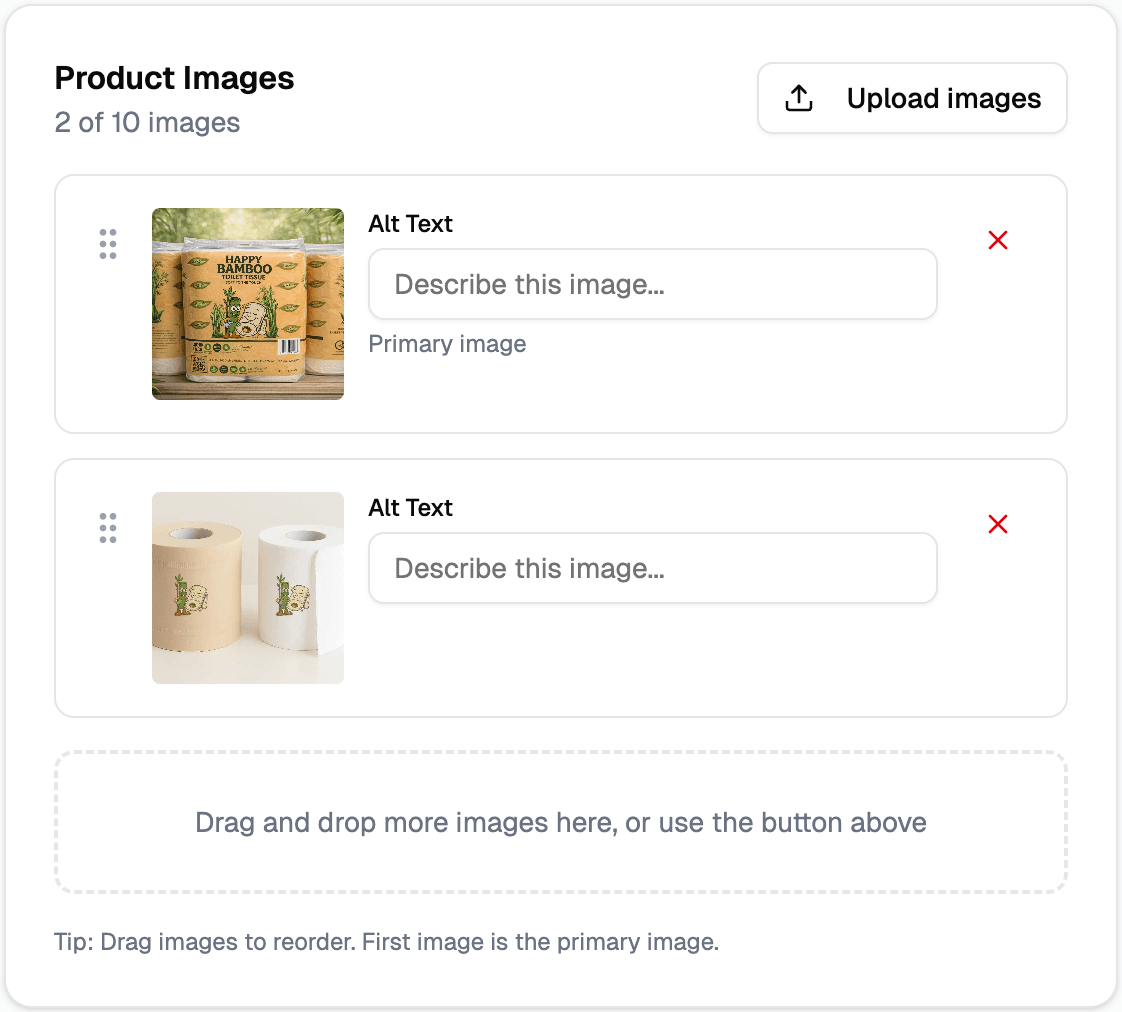
Upload one or more photos for your product. Drag the images to reorder them — the first image is used as the main product card thumbnail.
- Max: 10 images per product
- Max file size: 5 MB per image
- Each image has an optional Alt Text field for accessibility
Inventory
| Field | Notes |
|---|---|
| Track Inventory | Toggle on to enable stock tracking for this product. Off by default — the product shows as always in stock. |
| Allow Backorders | Only visible when Track Inventory is on. When enabled, customers can purchase even when qty = 0. |
| Inventory Quantity | Only visible when Track Inventory is on and the product has no variants. Enter your current stock level. |
When the product has variants, inventory quantity is set per variant instead.
Variants
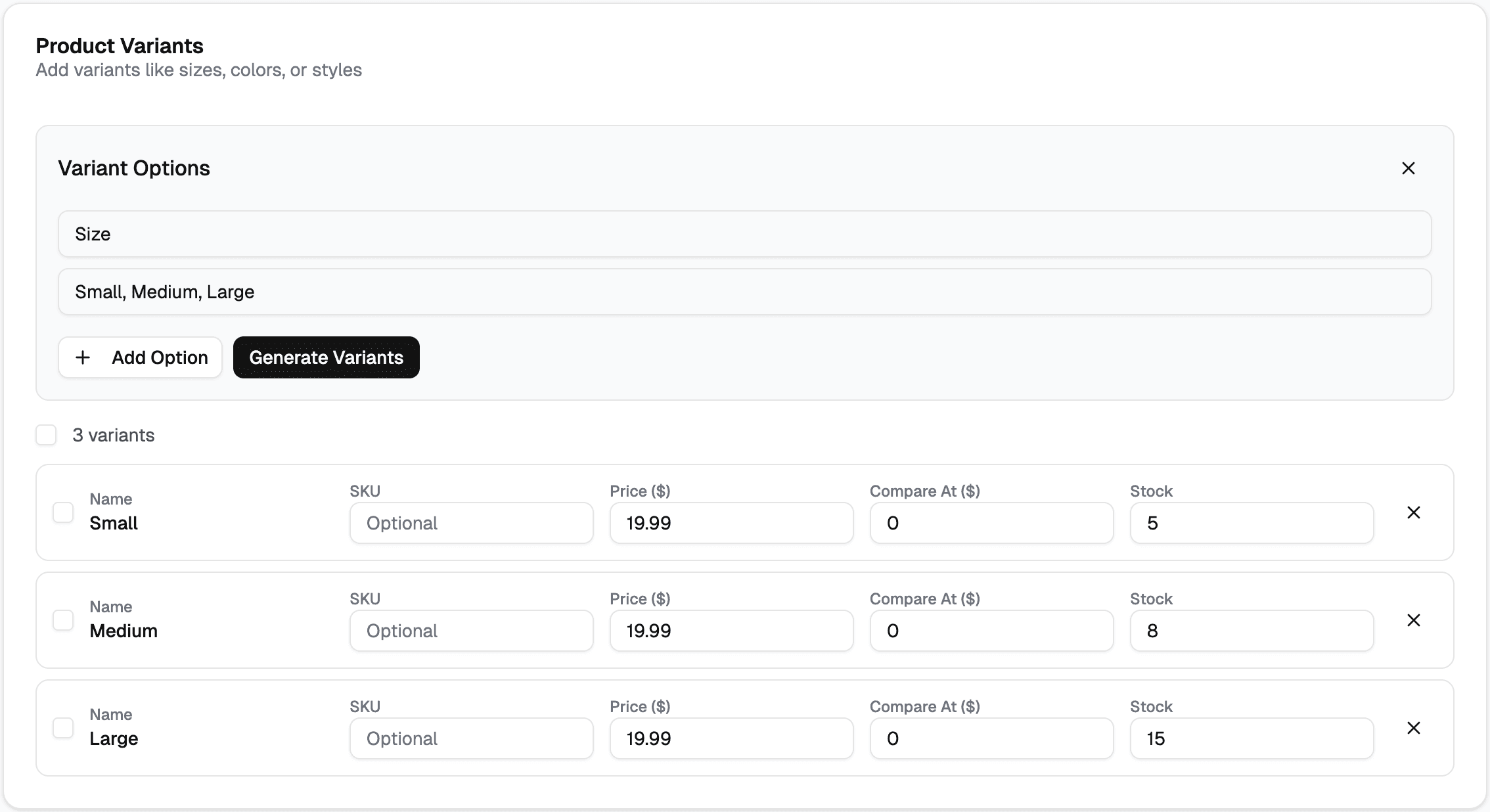
Use variants for products that come in different sizes, colors, or other options. Click Add Variant to open the variant manager.
Defining Options
Variants are built from option types. Common examples: Size with values Small, Medium, Large, or Color with values Black, White, Red. Once you define your option types and their values, the variant manager generates every combination automatically.
Variant Fields
Each variant has its own:
| Field | Notes |
|---|---|
| Name | Auto-generated from option values (e.g., "Small / Black"). Editable. |
| Price | The current price of the variant. |
| Compare At Price | (Optional) The original price of the variant. |
| SKU | Optional stock-keeping unit for this variant. |
| Inventory Qty | Per-variant stock level (only relevant when Track Inventory is on). |
Bulk Editing
Select multiple variants using the checkboxes and use Bulk Edit to update price and inventory quantity across all selected variants at once.
Additional Info Tab
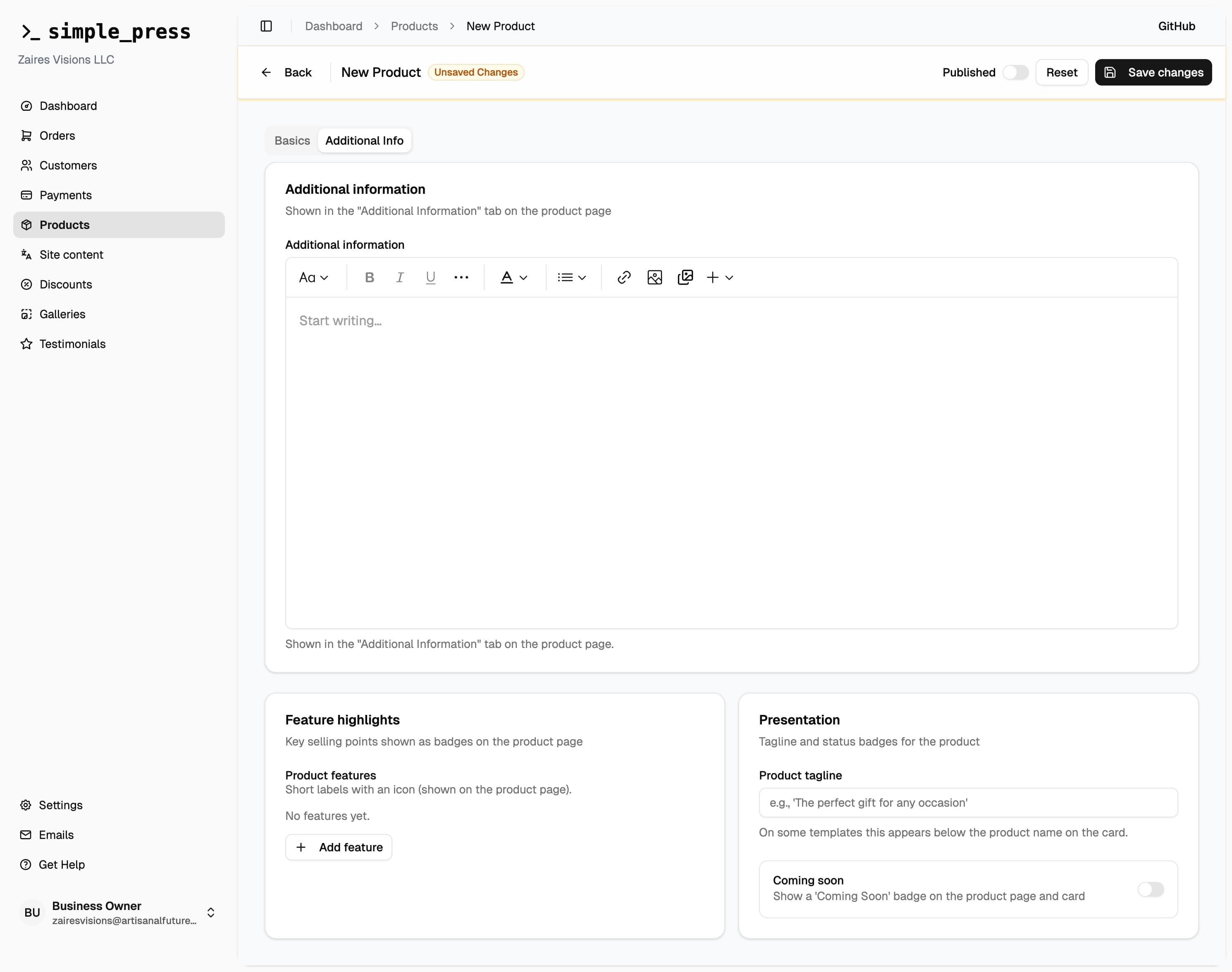
These fields are optional and their visibility on the storefront depends on which template your store uses.
Additional Information
A rich text editor (supports bold, italic, links, lists, and headings). On templates that support it, this content is rendered in an "Additional Information" tab on the product detail page — useful for care instructions, sizing guides, materials, etc.
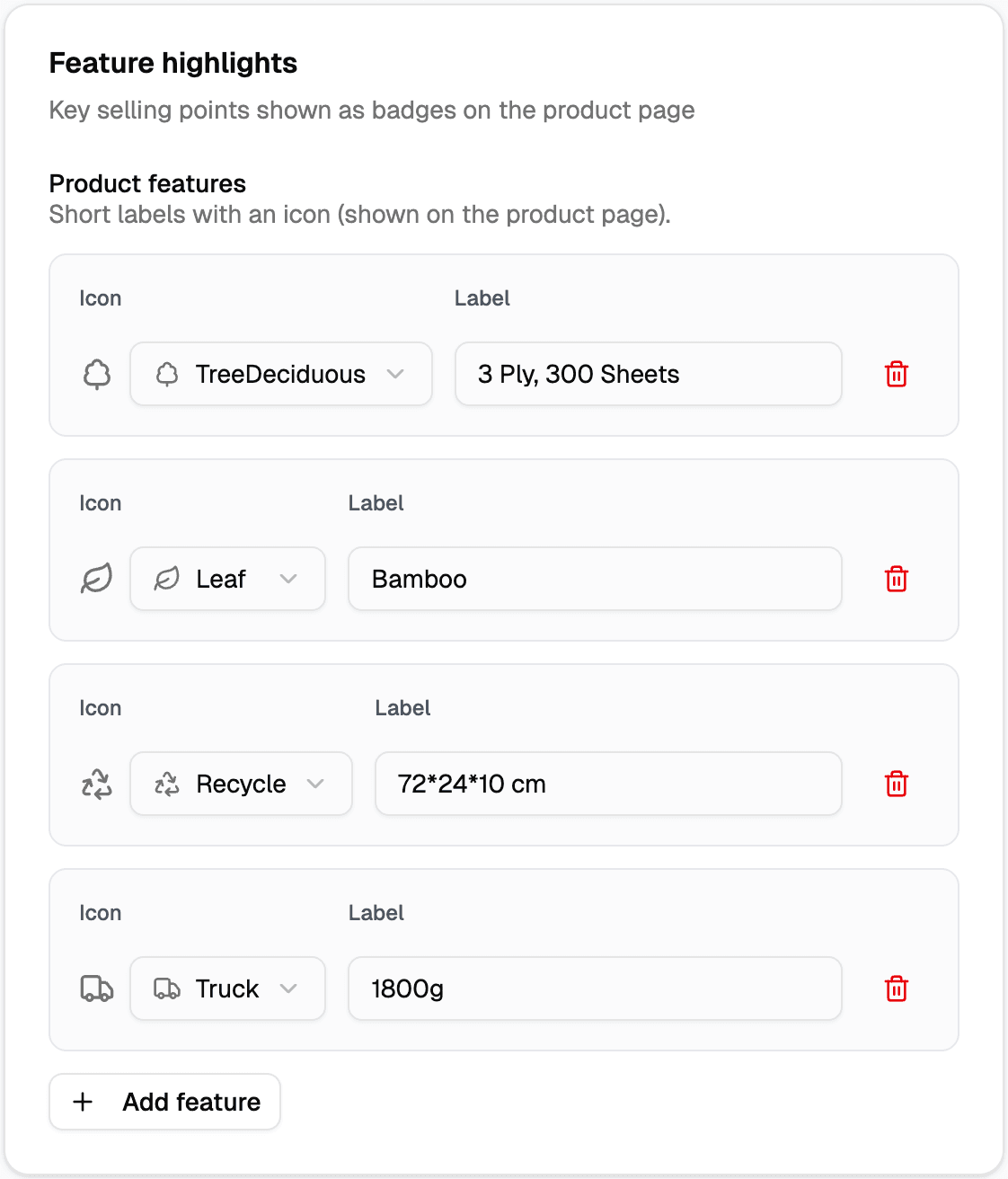
Feature Highlights
Add a list of short selling points, each with an icon and a label (e.g., a leaf icon + "100% Natural"). These appear as trust badges on the product page in supported templates.
Presentation
| Field | Notes |
|---|---|
| Product Tagline | A short subtitle shown below the product name on cards and the product page in some templates. Also appended to the product name in the cart (e.g., "Tote Bag - The everyday essential"). |
| Coming Soon | Toggle. Adds a "Coming Soon" badge and disables the add-to-cart button on the product page. The product is also blocked at checkout server-side — this cannot be bypassed even by accessing the URL directly. |
Publishing
The Published toggle is in the top toolbar of the product form. Unpublished products:
- Do not appear anywhere on the storefront
- Cannot be added to the cart
- Are blocked at checkout even if a customer somehow has the URL
New products default to unpublished. Flip the toggle and save when you're ready to make a product live.
Editing a Product
Click any product in the list to open it. All the same fields are available. Make your changes and click Save Changes (or press Enter). A "Saved" / "Unsaved Changes" badge in the toolbar reflects the current state.
To delete a product, click the Delete button in the toolbar and confirm. Deletion is permanent and removes all associated variants, images, and inventory history.
Storefront Behavior
- Products live at
/shop/[slug] - To see all products, the shop listing is at
/shop - The storefront renders the product page using your active template
- Product cards show the name, tagline (if set), price, compare-at price, and first image
- If a compare-at price is set, a sale badge is displayed alongside the crossed-out original price
- If
Track Inventoryis on and stock reaches zero (with backorders off), the product shows as sold out and cannot be added to the cart - The
Coming Soonflag shows a badge and blocks checkout regardless of inventory
Cannot
- Change a product's slug to one already used by another product in your store
- Set a negative inventory quantity
- Edit an order's items or pricing after checkout — the product data is captured at purchase time
- Have a "Coming Soon" product checked out even if it has inventory (blocked server-side)
- Access or edit another store's products
- Add custom fields outside what the product form provides
- Customize email templates that reference product data