Inventory Management
Track stock levels for your products and variants, control whether customers can order when stock runs out, and stay on top of low-stock situations before they become a problem.
Overview
SimplePress gives you two ways to track stock: per-product inventory for products that each have their own independent stock count, and inventory pools for products that share a single base supply. You can use either approach, or both at once across different products in your catalog.
Per-Product Inventory
Where to find it
Inventory settings live directly on each product. Go to Products in the admin sidebar, open any product, and scroll down to the Inventory section.
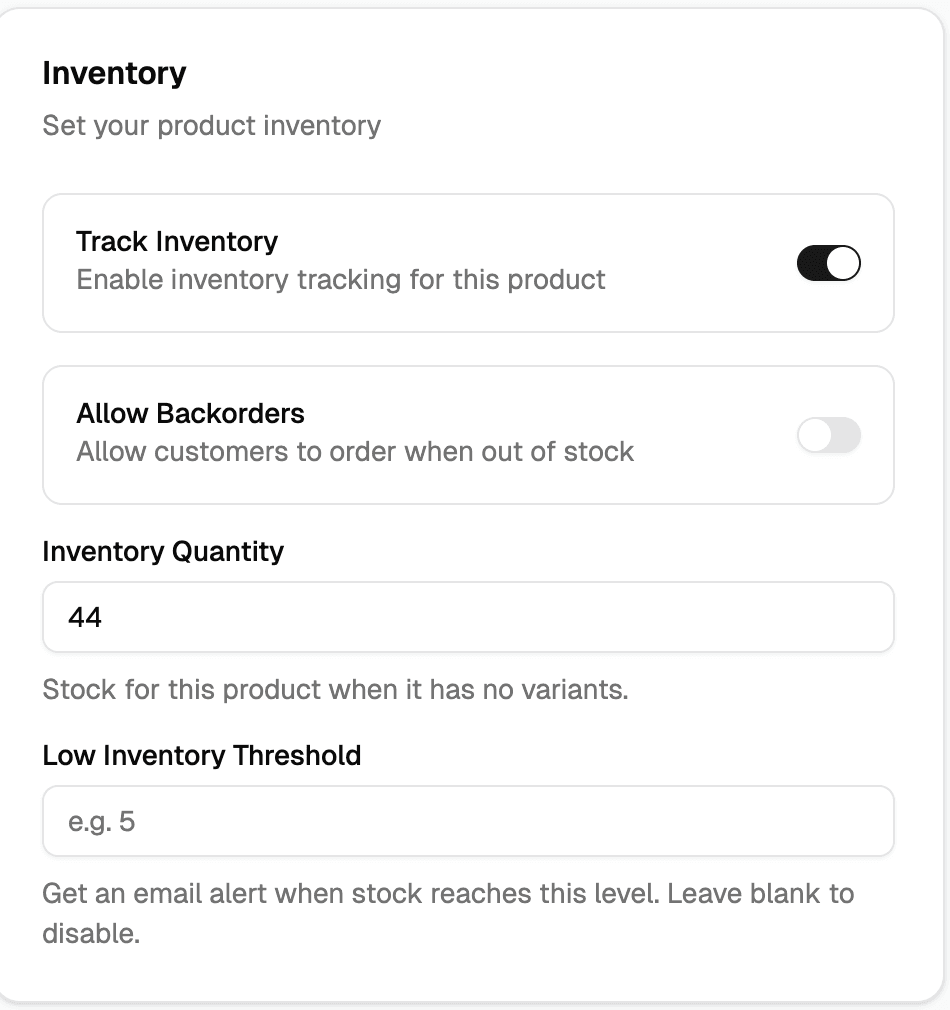
Enabling tracking
Every product has a Track Inventory toggle. It is off by default.
- Off: The product is always treated as in stock. Customers can always add it to their cart and check out regardless of any quantity you have entered.
- On: The platform enforces your stock quantity. Customers cannot check out an item that has no available stock (unless you also enable backorders — see below).
Enabling tracking on a product applies to all of its variants. There is no per-variant toggle; it is a product-level setting.
Tip: If your product line has a mix of tracked and untracked items, create separate products rather than trying to work around this at the variant level.
Setting quantities
Products without variants: When tracking is enabled, an Inventory Quantity field appears below the toggle. Enter the number of units you have on hand.
Products with variants: Each variant has its own Inventory Quantity field inside the variant manager. There is no single shared quantity — each size, color, or option you sell is tracked independently.
Bulk quantity set: In the variant manager, you can select multiple variants using the checkboxes and set a quantity for all of them at once. This is useful when restocking a full product line.
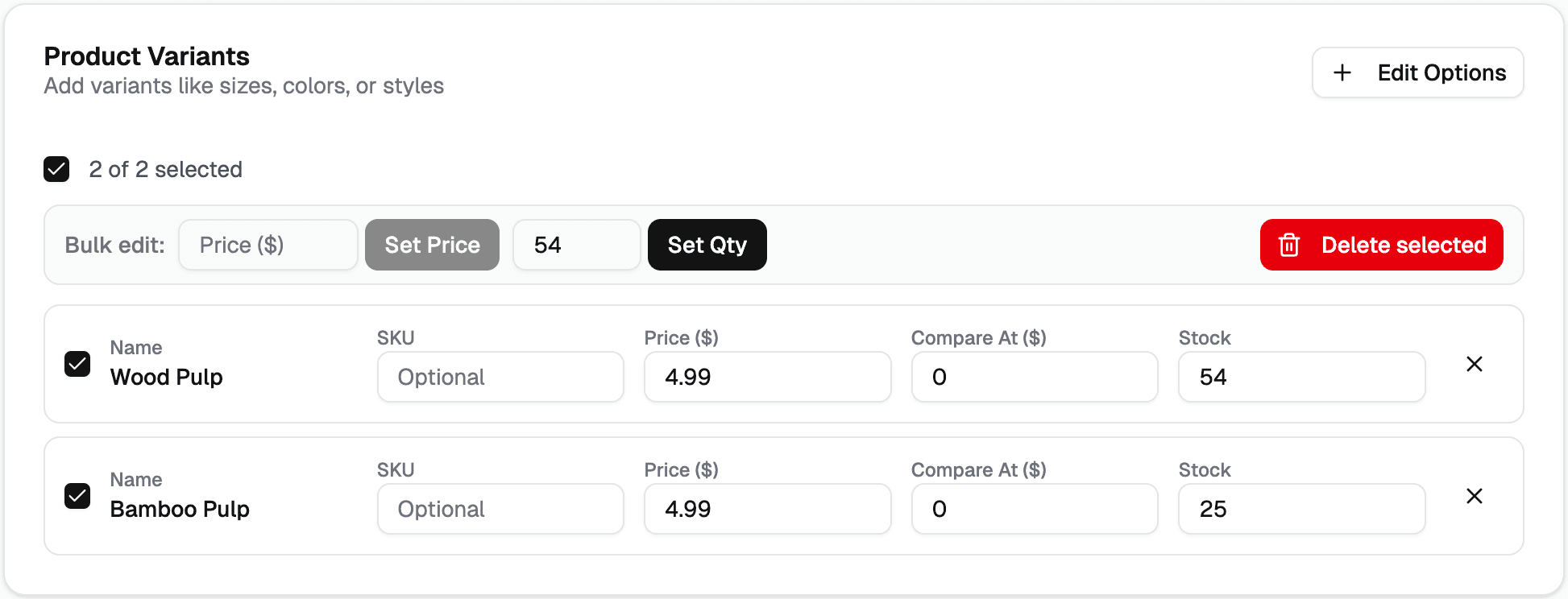
You cannot set a negative inventory quantity manually. The system will reject values below zero.
Allow Backorders
When Track Inventory is on, a second toggle appears: Allow Backorders.
- Off (default): Once stock reaches zero, customers cannot add the item to their cart. It will appear as out of stock on the storefront.
- On: Customers can still check out even when quantity is zero or lower. Useful if you make to order, accept pre-orders, or are comfortable fulfilling after restocking.
When backorders are enabled, inventory will decrement past zero. A variant showing −3 means three more units were ordered than you had available. The platform tracks this so you know exactly how many units you need to fulfil outstanding orders.
This setting is per-product and applies to all variants.
Inventory Pools
What is a pool?
An inventory pool is a shared stock count that multiple products draw from. Instead of tracking each product independently, you define a single base supply and each linked product specifies how many base units it consumes per sale.
Example: You stock bolts of fabric in 4-yard rolls. You sell that fabric as a 12-yard cut (3 rolls), a 24-yard cut (6 rolls), and a 48-yard cut (12 rolls). Rather than tracking three separate inventories, you create one pool called "Fabric Rolls" and link all three products to it, each with the appropriate units-consumed value. When a 12-yard cut sells, 3 rolls are automatically deducted from the shared pool.
When to use pools
Use pools when:
- You sell the same underlying inventory in different sizes or configurations
- Running out of the base supply should simultaneously mark multiple products as out of stock
- You want a single place to manage and restock one shared resource
Use per-product inventory when each product has its own independent stock that does not affect any other product.
Managing pools
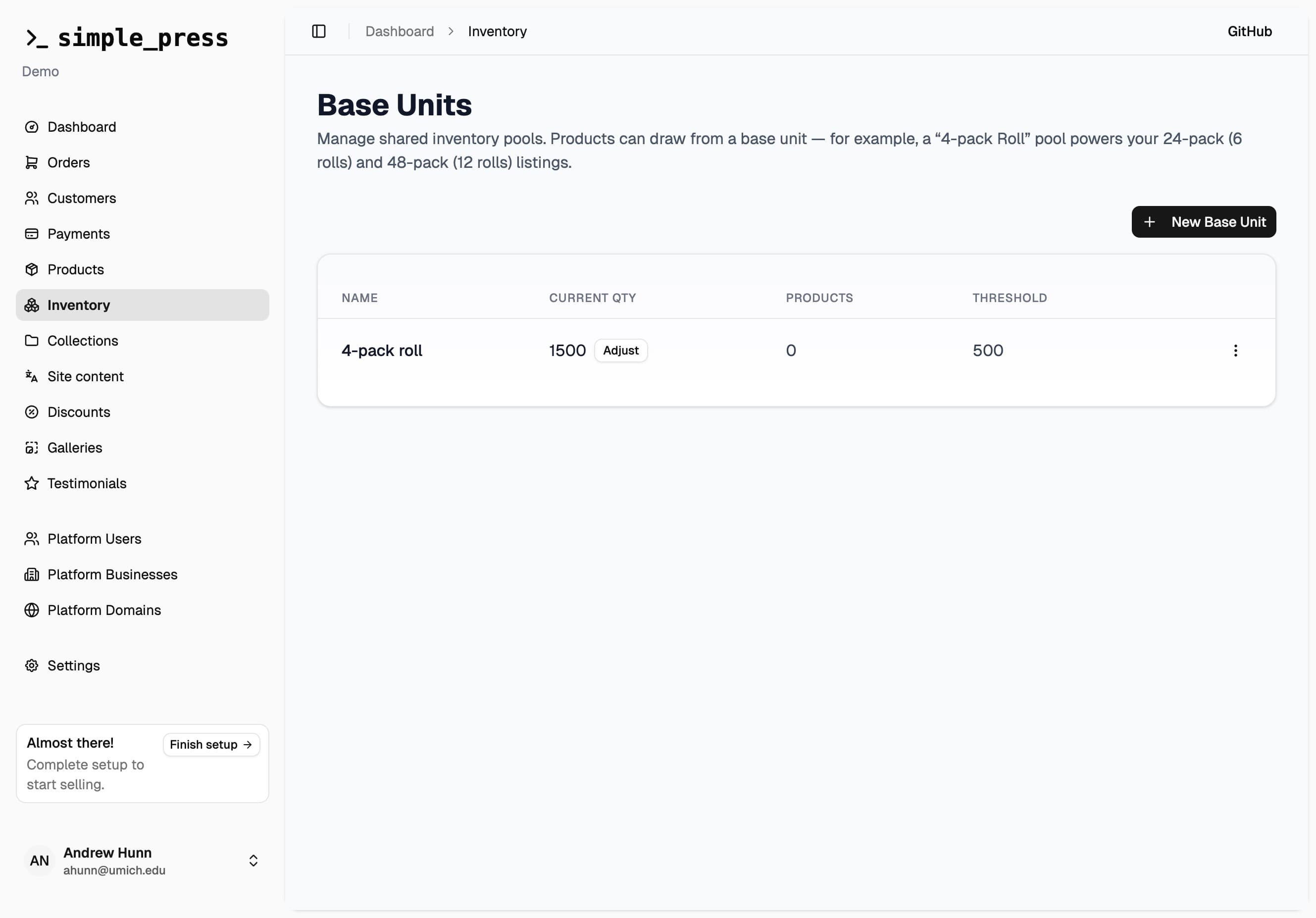
Pools are managed from the Inventory page in the admin sidebar. From there you can:
- Create a pool — give it a name, an optional description, a starting quantity, and an optional low-stock threshold for email alerts
- Adjust quantity — manually add or subtract from a pool at any time with a reason (restock, adjustment, correction, damage, return)
- Edit — update the name, description, or low-stock threshold
- Delete — removes the pool permanently; linked products are detached and immediately set to out of stock under individual tracking. You will need to restock them manually before they are purchasable again.
Backorders are not supported on pools. If a pool reaches zero, linked products will show as out of stock until you restock the pool.
Linking a product to a pool
A simple product (no variants) can be linked to a pool from the Inventory section of its product page. You will only see the pool selector if you have created at least one pool.
- Open the product in the admin
- Scroll to Inventory
- Select a pool from the Inventory Pool dropdown
- Enter how many base units this product consumes per sale in the Units consumed per purchase field
- Save the product
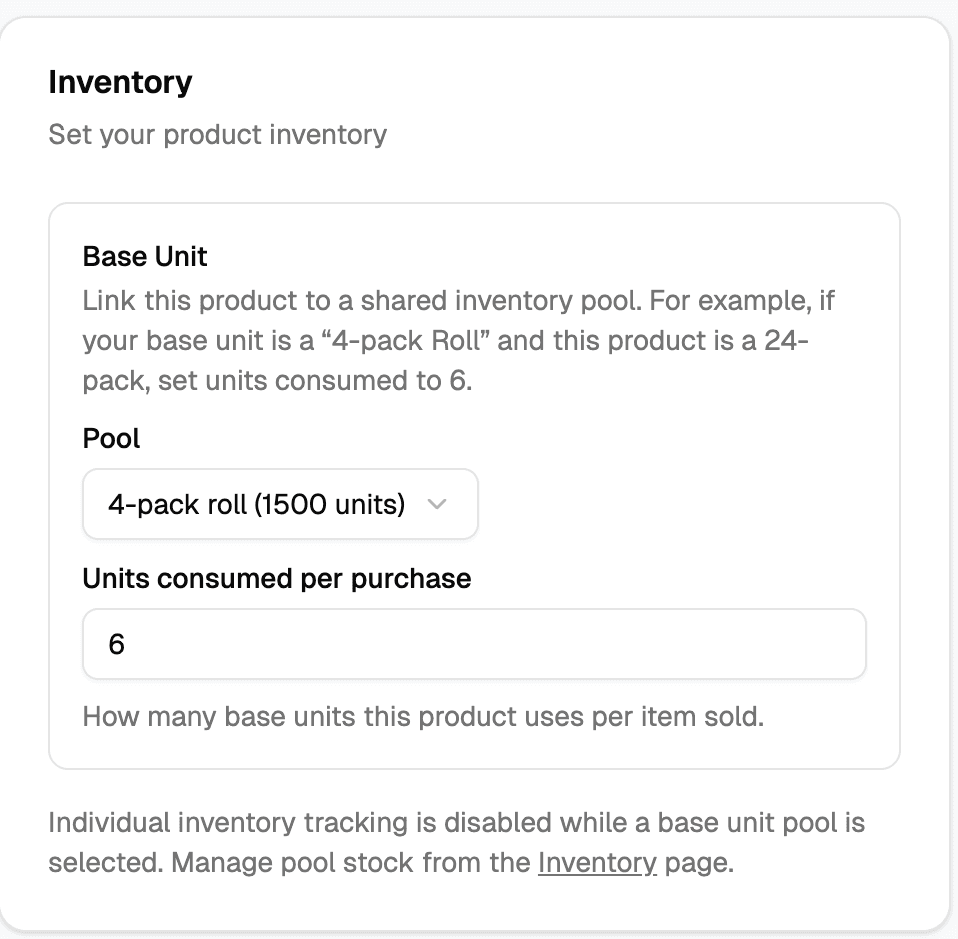
Once a pool is linked, per-product inventory tracking is disabled for that product — the pool manages its stock. The individual inventory controls are hidden and the product shows a note directing you to the Inventory page to manage pool stock.
Products with variants cannot be linked to a pool. Remove all variants first if you want to switch a product to pool-based inventory.
How pool stock is displayed on the storefront
The storefront automatically calculates how many units of a pool-linked product a customer can buy based on the current pool quantity and the product's units-consumed value:
Available to purchase = floor(pool quantity ÷ units consumed per sale)If the pool has 10 rolls and the product consumes 6 rolls per sale, the storefront shows a maximum of 1 available. If the pool reaches zero, the product shows as out of stock.
Cart note: If a customer has multiple pool-linked products in their cart that together exceed the available pool quantity, the cart will not warn them — each product is checked independently. The checkout step will catch the shortfall and remove the items that cannot be fulfilled. To avoid this, keep pool quantities accurate and restock before they run low.
How Inventory Is Decremented
The same two-step process applies to both per-product inventory and inventory pools:
-
At checkout creation — the system checks availability before creating the Stripe session. If a product is out of stock (or a pool cannot cover the full order demand), the item is flagged and the customer sees an error before reaching Stripe.
-
When payment is confirmed — on the Stripe webhook, inventory is decremented inside a database transaction using a conditional update. For pools, the total base units needed across all pool-linked items in the order are deducted in aggregate. If two customers attempt to buy the last available stock simultaneously, only one deduction will succeed; the other is logged as an oversell.
Inventory decrements happen atomically — the platform never double-counts a sale, even under simultaneous purchases.
Oversells
In rare high-traffic situations a customer may complete payment for stock that sold out between their cart check and payment confirmation. When this happens:
- The order is still created and confirmed (Stripe has already charged them)
- Inventory is not adjusted — it stays at whatever level it was when the payment was processed
- The discrepancy is logged internally
You will need to fulfil these orders manually — either by restocking and shipping, or by contacting the customer to arrange a refund or substitution.
Low-Stock Alerts
Dashboard widget
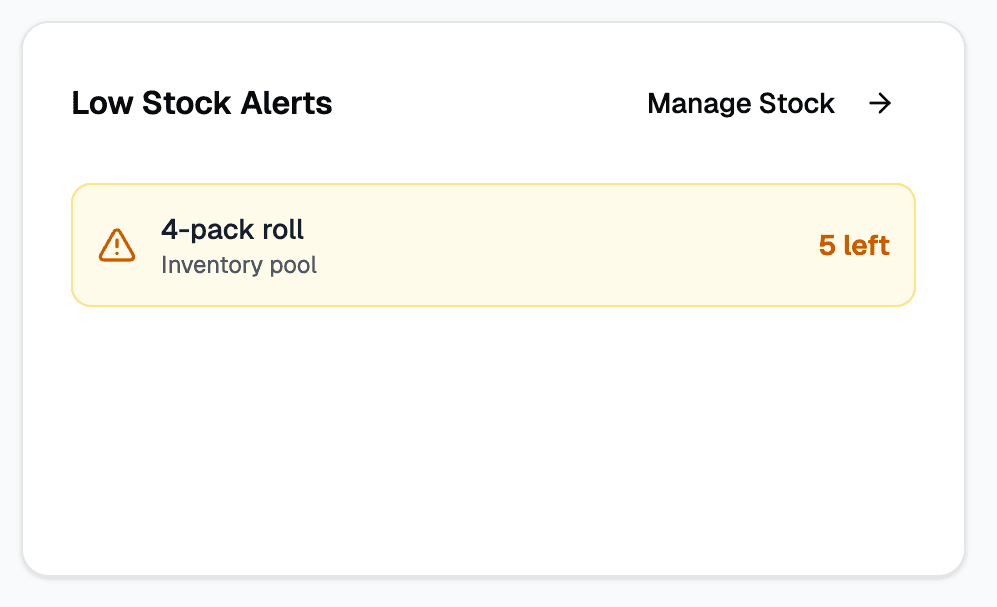
The Dashboard surfaces a low-stock section showing your most urgent items at a glance:
- Any published product or variant with 10 or fewer units remaining appears in the list
- Inventory pools with 10 or fewer base units remaining also appear — clicking a pool alert takes you directly to the Inventory page
- Items are sorted from lowest stock to highest, so the most urgent appear first
- Up to 5 items are shown; follow the link to manage stock
Only published products appear in the alert. Drafts and unpublished products are excluded. Pools always appear regardless of published state, since a depleted pool affects all linked products.
Email notifications
Per-product: Set a Low Inventory Threshold on any tracked product. When a sale brings stock to or below that number, you receive an email with a direct link to the product.
Pools: Set a Low Inventory Threshold when creating or editing a pool. The same alert logic applies — an email fires when pool quantity drops to or below the threshold after a sale.
Alert behaviour (both per-product and pools):
| Situation | Email sent |
|---|---|
| Stock drops to or below threshold (but above zero) | Low inventory alert |
| Stock reaches zero (per-product, backorders off) | Out of stock alert |
| Stock reaches zero (per-product, backorders on) | Out of stock — backorders on alert |
| Pool reaches zero | Out of stock alert |
Each alert fires once per down-cycle. When you restock above the threshold (either by manual adjustment or via a refund/cancellation), the alert resets so you will receive it again if stock drops back down.
If stock goes directly from above the threshold to zero in a single order, only the out-of-stock alert fires (not both).
Leaving the threshold field blank disables email alerts for that product or pool.
Restocking After a Refund or Cancellation
When you refund or cancel an order, the dialog includes a Restock items toggle:
- On: Inventory quantities are restored for all items in the order. For pool-linked products, the corresponding base units are returned to the pool. Alert flags reset automatically so you will receive a fresh low-stock email if stock drops below the threshold again in the future.
- Off: Inventory is not restored — use this if the customer is keeping the item, the product was damaged, or you do not want to re-list the stock.
See the Orders documentation for full details on refunds and cancellations.
Checking Stock
Per-product: Go to Products, open the product, and scroll to the Inventory section. For variants, each row in the variant manager shows the current quantity when tracking is enabled.
Pools: Go to Inventory in the sidebar. The table shows each pool's current base-unit quantity, how many products draw from it, and its low-stock threshold. Use the Adjust button to manually restock or correct a pool.
Feature Flag
Inventory management is on by default for all stores. If you disable the Products feature in Settings > Features, inventory management is also disabled since there are no products to track.
What You Can and Cannot Do
You can:
- Enable or disable inventory tracking per product
- Set and update inventory quantities for products and individual variants
- Set a single quantity across multiple selected variants at once
- Allow backorders on a product so customers can order past zero
- Set a per-product low inventory threshold for email alerts
- Create inventory pools to share a single stock count across multiple products
- Set a low-stock threshold on a pool for email alerts
- Manually adjust pool quantity at any time with a recorded reason
- Link a simple product (no variants) to a pool and specify units consumed per sale
- View low-stock alerts for both products and pools on the dashboard
- Receive email notifications when stock is low, out of stock, or a pool is depleted
- Choose whether to restock items when a refund or cancellation is processed
- Bulk-update per-product inventory quantities via CSV import (matches by SKU)
You cannot:
- Enter a negative inventory quantity manually
- Set different backorder rules per variant — it is a product-level toggle
- Set different low-inventory thresholds per variant — the threshold applies to the whole product
- Enable backorders on an inventory pool — pools do not support backorders
- Link a product that has variants to a pool — remove variants first
- Use both per-product tracking and a pool on the same product simultaneously
- View a full inventory history log in the admin for per-product changes (tracked internally but not displayed)
- View pool inventory history in the admin after a pool is deleted — history is removed along with the pool