Contact Form
Give customers a simple way to reach you directly from your storefront.
Overview
The contact form gives customers a simple way to reach you directly from your storefront. Every submission is emailed to you — there's no inbox to manage, just a message in your email that you reply to like any other.
Feature flag: Contact Form is on by default and not owner-toggleable. It is always available on your storefront unless disabled by the platform team.
Where the Form Appears
The contact form lives at /contact on your storefront — for example, yourstore.simplepress.co/contact. Every template has its own styled version of this page, but they all send submissions the same way.
You can link to it from your storefront navigation by adding a link to /contact in Settings → Storefront & Branding → Navigation.
What Customers Fill Out
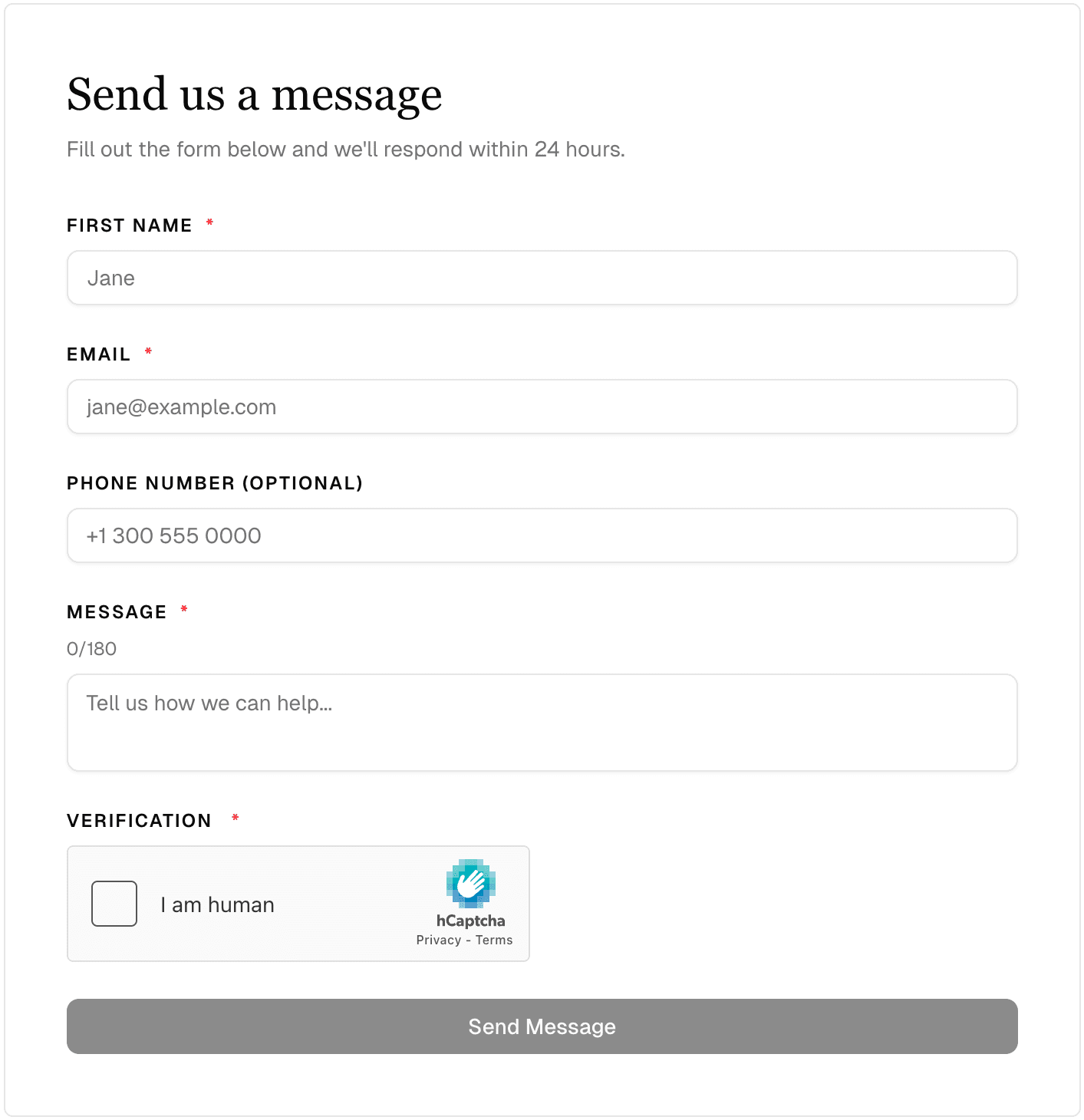
All contact forms include some variation of the following fields:
| Field | Required | Notes |
|---|---|---|
| Name | Yes | Customer's name |
| Yes | Where you'll reply | |
| Message | Yes | Min 10 characters; max varies by template (180 chars by default) |
| Phone | No | Optional phone number |
| Preferred Contact Method | No | Email / Phone / No Preference |
A captcha is shown at the bottom to prevent spam. Customers must complete it before submitting.
After submitting, customers see a success message — something along the lines of "Thank you for reaching out. We will get back to you within 1–2 business days." They can then choose to send another message if needed.
Logged-in customers do not get any fields pre-filled — everyone fills out the form the same way.
What You Receive
When a customer submits the form, you receive an email at whichever address is set as your support email (go to Settings → General to set or change it). If no support email is set, submissions go to your account's owner email.
The email includes:
- Customer's name and email
- Their phone number (if provided)
- Their preferred contact method (if provided)
- The full message text
- A footer note: "Reply directly to this email to respond to [customer name]."
The Reply-To header is automatically set to the customer's email address — so when you hit reply in your inbox, it goes straight to them. No extra steps needed.
Submissions are not stored in your admin dashboard. Your email inbox is the only record of past contact form messages. If you need to archive them, do so in your email client.
Frequently Asked Questions
Where do submissions go? They're emailed to your support email (or owner email if no support email is set). There is no inbox in your admin dashboard — check your email.
Can I see past submissions? No. Submissions are not stored in your admin. Once the email is sent, the only copy is in your inbox. If you need an archive, save them in a folder in your email client.
Can I reply to customers from the admin? No. Reply directly to the email you receive — the Reply-To is automatically set to the customer's address.
Can I turn the contact form off? The contact form cannot be disabled by you as a store owner. If you need it removed, contact support.
Can I add custom fields to the form? No. The form fields are fixed: name, email, message, phone (optional), and preferred contact method (optional). Custom fields are not supported.
Can I send customers an automatic reply when they submit? No. There is no auto-reply or confirmation email sent to the customer. Consider mentioning your expected response time in the page description or the success message (customizable via Template Fields on some templates).
What if I don't receive a submission? Check your spam folder. Submissions come from a noreply system address with your business name as the sender name. If you're still not receiving them, verify that your support email is correct in Settings → General.
Cannot
- View past submissions in the admin dashboard
- Reply to customers from within SimplePress
- Add or remove form fields
- Set up an automatic reply to customers
- Disable the contact form yourself (contact support if needed)
- Redirect customers to a custom URL after they submit