Collections
Group related products together under a shared page.
Overview
Collections let you group related products together under a shared page — perfect for seasonal drops, product categories, curated edits, or any grouping that makes sense for your store. Customers can browse all your collections at /collections and click into any one to see its products.
What Collections Are (and Aren't)
Collections are organizational and display only. Adding a product to a collection doesn't change its price, visibility, or inventory settings. A product can belong to multiple collections at the same time.
Collections have their own pages on your storefront, their own images, and their own SEO settings — they're browsable destinations, not just filters.
Requires: Collections depend on the Products feature being enabled. If Products is turned off, Collections becomes unavailable too. You can enable Collections in Settings > Features.
The Collections List
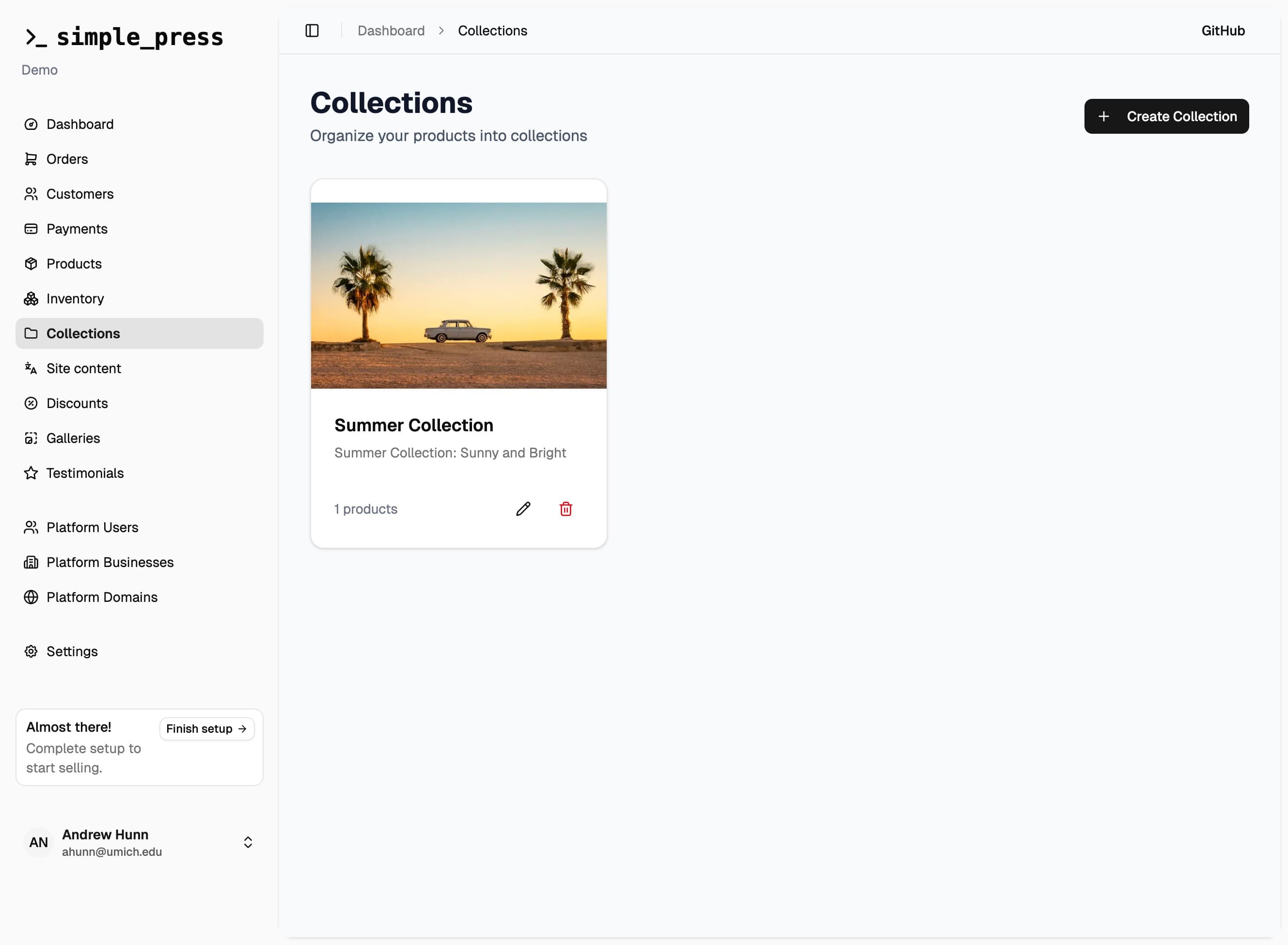
Go to Collections in your admin sidebar to see all of your collections displayed as cards. Each card shows:
- The collection's featured image (if one has been uploaded)
- Collection name and description
- How many products are in it
- A Draft badge if the collection isn't published yet
From here you can create a new collection, edit an existing one, or delete one directly from the list.
Creating or Editing a Collection
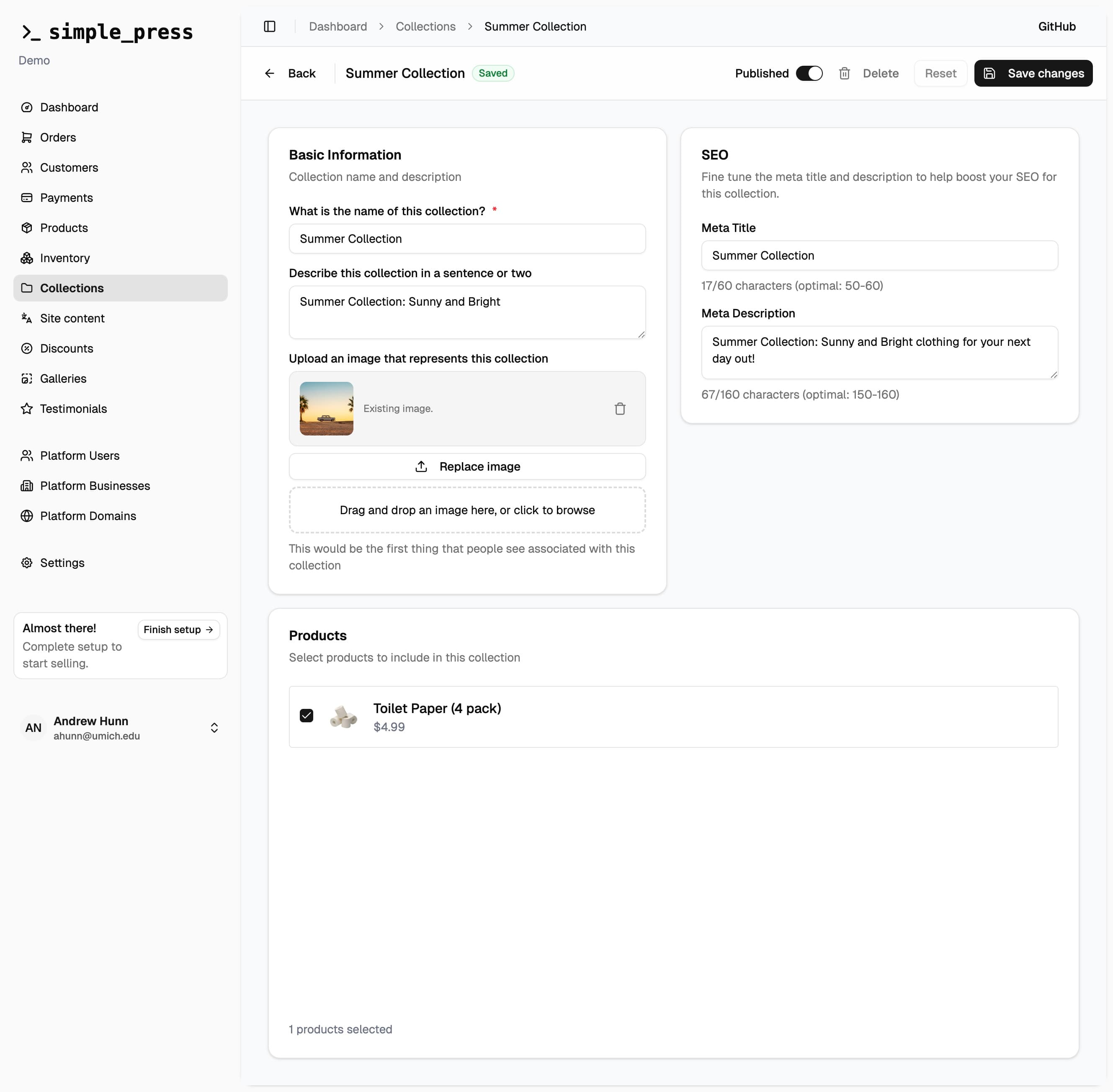
Click Create Collection or click the edit icon on an existing collection to open the collection editor.
Basic Information
- Name (required) — the collection's display name, shown on the storefront and in the browser tab
- Description — a short sentence or two describing the collection; shown on the collection page
- Image — upload a featured image that represents this collection; this is the first visual customers see associated with it
Slug (URL)
The URL slug for the collection is auto-generated from the name when you create it. For example, a collection named "Summer Drop" becomes /collections/summer-drop. If you later rename the collection, the slug updates to match.
Note: Renaming a collection will change its URL. Any links pointing to the old URL will break. If the collection has been live and shared publicly, be cautious about renaming it.
Published Toggle
The Published toggle in the top toolbar controls whether the collection is visible on your storefront. Unpublished collections return a 404 to customers — even if they have the direct URL. You can save changes while a collection is unpublished without them going live.
Products
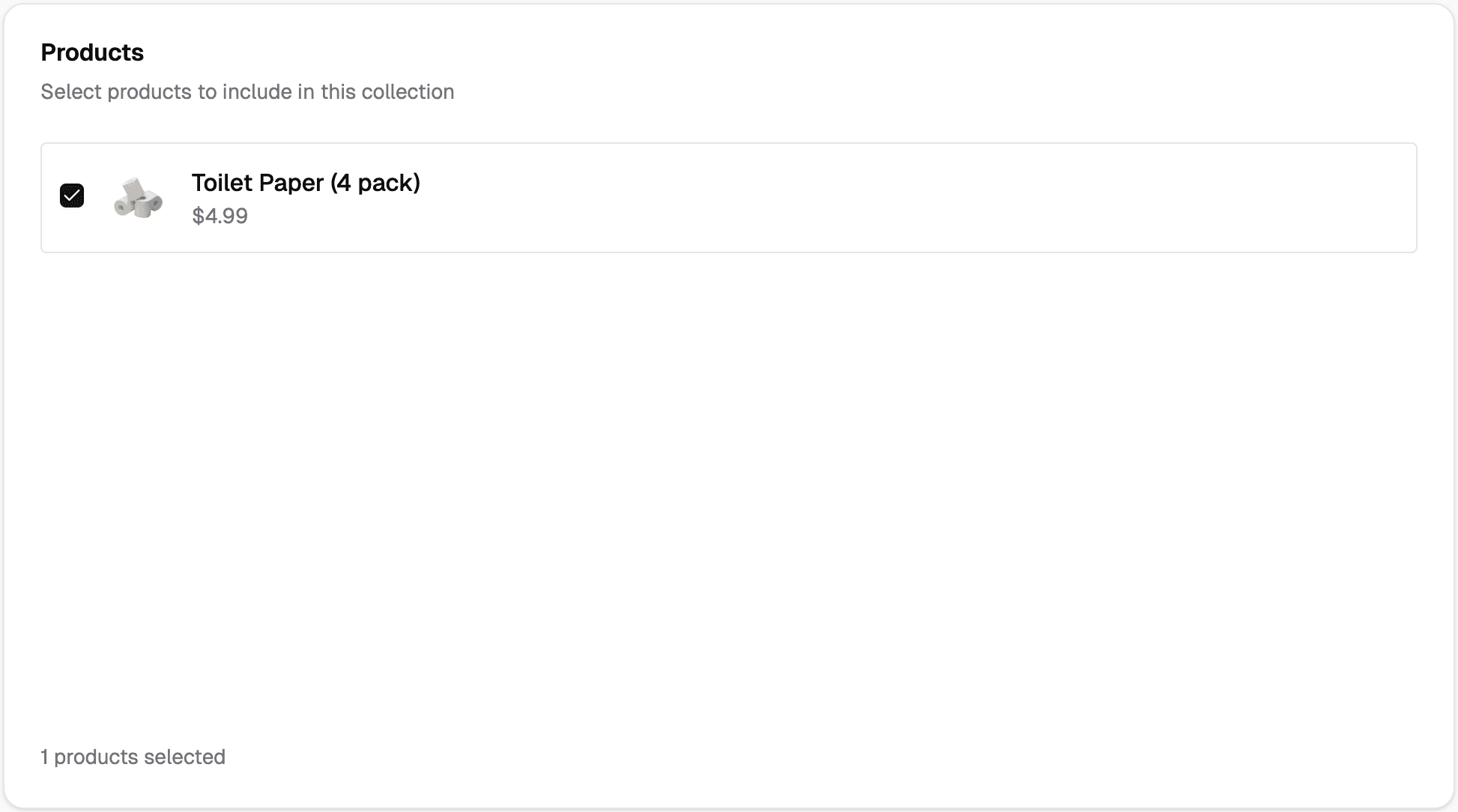
The Products section shows a scrollable list of all your products with checkboxes. Check the ones you want in this collection; uncheck to remove them. Your selection is saved when you hit Save changes.
Products appear in the collection in the order they were added. The count of selected products is shown below the list.
SEO
- Meta Title — the page title shown in search results and browser tabs; aim for 50–60 characters (the editor shows a live character count)
- Meta Description — the description shown in search results; aim for 150–160 characters
If you leave these blank, your storefront will automatically generate a title and description from the collection name, description, and your business name.
Deleting a Collection
You can delete a collection from the collection editor (the delete button in the toolbar) or from the collections list (the trash icon on the card). A confirmation dialog appears before anything is removed.
Deleting a collection removes the collection and its page from your storefront, but does not delete the products in it. Products remain in your catalog untouched.
How Collections Look on Your Storefront
- Collections index —
/collectionslists all published collections. The display style depends on your template. - Collection page —
/collections/[slug]shows the collection's image, name, description, and all products in it. Many templates also show your other collections at the bottom of the page, so customers can keep browsing.
Unpublished collections are completely invisible — they return a not-found page rather than a hidden/preview view.
Can and Can't
You can:
- Create as many collections as you need
- Add a product to more than one collection
- Save a collection as a draft (unpublished) while you work on it
- Delete a collection without affecting any products
- Set per-collection SEO titles and descriptions
- Upload a featured image for each collection
You cannot:
- Manually set or edit a collection's URL slug — it is auto-generated from the name
- Use collections if the Products feature is disabled
- Apply pricing, discounts, or inventory changes through a collection (collections are display only)
- Reorder products within a collection after they've been added (products appear in the order they were originally added)
Feature Flag
Collections is off by default and owner-toggleable. Go to Settings > Features to enable it. It requires the Products feature to be on — disabling Products will also disable Collections.